Showing posts with label Windows. Show all posts

Tuesday, August 27, 2013

Windows 8.1 released to manufacturers, users will have to wait until October 18 to get it


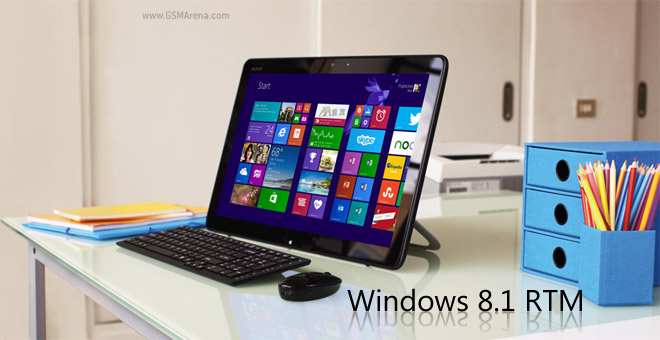
Windows 8.1 and Windows RT 8.1 have hit the RTM stage, meaning Microsoft has sent them out to device markers and with their help will do the finishing touches to the updated OS. The update will be released to the public on October 18.

Windows 8.1 is part of Microsoft’s new strategy – instead of waiting years to deliver new major features to their flagship OS, the company will move to a quick release schedule. And so, just 10 months after the initial launch of the OS comes its first major update.

Microsoft revealed most of the major changes in 8.1 pretty early on – like the return of the Start button (but not the Start menu), up to three Metro apps sharing the screen, better search, new lockscreen, Skype integration, offline SkyDrive access and so on.

You can check out a video of an early leaked version of Windows 8.1 and even download the Preview.

The RTM version of Windows 8.1, however, is still off limits to consumers, even MSDN and TechNet subscribers.

Windows 8.1 is not just an update for current devices either, Microsoft is promising many innovative new devices, “smallest tablets to the most lightweight notebooks to versatile 2-in-1s, as well as industry devices designed for business,” arriving in time for the holiday season.

Read More
No comments:

Monday, August 5, 2013

Microsoft drops Surface Pro price by $100


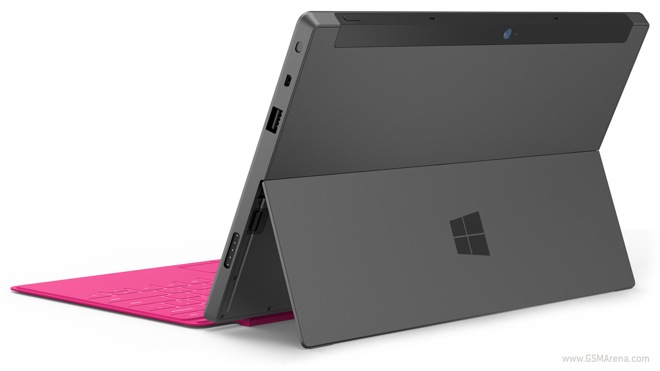
After recently dropping the Surface RT prices by a cool $150, Microsoft has now announced that the Surface Pro will be receiving a $100 price drop, which means prices for the 64GB model now start at $799.

The offer is only for a limited time between August 4 and August 29 and is only available to customers in Canada, China, Hong Kong, Taiwan, and the US.

Microsoft recently faced a major loss in the region of $900 million due to poor Surface sales. The price cuts are an obvious attempt to clear stock that has piled up over the months and also signal the imminent arrival of a successor.

Read More
No comments:

Friday, July 12, 2013

Get Android 4.2.2 On Your PC In 10 Steps

Did you know that you could run Android Jelly Bean 4.2.2 software on your actual PC? Learn2crack has made an easy tutorial which allows users to install the mobile operating system on your PC and tweak it, install apps and do basically whatever you want with it. Please note though that proceeding to do this is at your own risk.

First of all you would have to download some pieces of software which you will use. The first piece of software we must install is Oracle VM VirtualBox, and the second piece of software you must download is the Android 4.2 JellyBean iso file


Steps to installing Android JellyBean

Now to start installing Jelly Bean you have to install VirtualBox on your computer then open it and select "new". Enter any name that you want to use, then after this select the type as Linux, and the version as "other linux". Upon completion of this, select next.

In the next dialogue box, enter the memory size of your choice. You should be mindful of the fact though, that Android JellyBean requires at least 512MB of memory to run, so you might want to use a little bit more but it is your choice of course. Once you have done this select next.

In the next dialogue box you will see a place where it will allow you to create a virtual hard drive. Select this option, then choose VDI. After this you can decide whether you want it to be fixed or dynamically allocated, according to your preferences of course. You should also take note here that I minimum of 1 GB is needed for installation.

The next step after this is to select a virtual device and then choose settings. A dialogue box will soon appear upon which you will go to storage and proceed to storage tree and proceed to empty. In the attributes part, choose the JellyBean iso file we downloaded earlier, then check Live CD/DVD. Proceed to clicking OK after this.

After doing this you need to start the virtual device and then choose the option on install Android x86 to hard drive.

On the screen after this, you want to choose where it says Create/Modfiy partitions. After this you want to then create a new primary bootable partition and then select where it says write. After the writing is complete you will then quit.

The next step is to install Android in sda and select type and ext3, choose yes for instaling grub.

After all this is done you then want to remove live iso from the virtual box and proceed to reboot. After this you can boot into Android JellyBean 4.2.2

If you have followed all the instructions properly, Android 4.2.2 should now be installed on your computer.

Have you installed Android 4.2.2 on your computer? What has been your experience with it? Please leave us a comment below.
Read More
No comments:

Wednesday, July 10, 2013

10 valueable Steps to Drive Huge Traffic to your Blog

The basic need of all blogs to is earn or to increase their page rank and at the same time, increase their traffic. Without driving traffic to a blog, earning from the blog and gaining popularity is almost impossible. So, here in this post I am going to discuss the ways to increasing traffic to your blog in these easy steps.

It is easy to start a blog but it is hard to effectively drive traffic to it. The key to a successful blog is huge traffic with loyal readers. So, how do you increase traffic to your blog? Here are the methods to do it:


1. Regularity in work:

Post regularly to gain loyal readers and drive traffic to your blog. Regularity is must for a successful blogging career and hard work is the key to success. I’m not saying you should work too hard, I always suggest people should enjoy their work and think blogging as fun.


2.“Quality is the King”

The posts that you publish must be quality content, this helps in providing a good impression about your blog to visitors and helps in building loyal readers who will always come back. Prevent grammatical mistakes in your posts. Be sure that the presentation of your articles is always perfect.


3. Upload Youtube Videos In the Post

Embedding Youtube videos you uploaded within your posts can get you traffic from Youtube. As you may know already, you can also earn through Youtube so, apart from driving traffic from the world’s largest video website, you can as well earn from it.


4. Comment on Popular blog: Comment luv blogs

Comment on commentluv enabled blogs as a link is left on these websites that may help in increasing your website traffic by some amount. Also, this helps in building links to your articles which is good for search engine optimization.

5. Guest Post

I almost forgot to mention the best method of increasing traffic to your blog. Yes, you are right it is guest posting. Guest post for highly reputed websites as this will surely increase your traffic as well as page rank. This helps in building links with other websites as well.


6. Attractive blog Design

The presentation of a website is responsible for increase or decrease of traffic to a blog. Always keep your website well maintained with professional looking themes, useful widgets and plugins.


7. Share website on Social Networks

This is a really very important step in gaining a huge amount of traffic. Make a facebook fan page of your website and increase your fans. Similarly, connect your blog to twitter, Google+, dig, tumblr etc. This will provide a huge boost to your traffic in just few time.


8. Submit Your blog To blog directories

Submit your blog to the blog directories like bloggers, bloglog etc. This will help in increasing your traffic by huge amount as you get interacts with other blogger’s through these websites. Also, blogging communities like BlogEngage can be of help and at the same time, paid submissions to reputable directories should be considered. This will help in building your regular visitors.


9. Mobilize your blog

Your blog should be mobile friendly since quite a huge number of internet users are mobile. A mobile friendly website encourages mobile users to visit and also, this can be a great way of optimizing your site for mobile search.


10. SEO
This is the main aspect that plays a vital role in increasing the traffic to your blog. Your posts must be SEO friendly; it must be of perfect length with the right keywords used strategically. Search engine optimization is the best part of increasing traffic to your post. This also helps in increasing your page rank and thus if page rank increases, it means that your traffic increases by huge amount.

Guest posting is best method of getting traffic and backlinks to your website through high reputed websites and above all, be sure your link building strategy is natural.

If all above steps are taken into consideration, then it would be really very easy for you to increase traffic to your blog.

Read More
1 comment:

Monday, July 8, 2013

Samsung Galaxy Grand - Drivers fails to install when connecting USB to PC !

I am not sure if others are also facing the same but every time I connect my Samsung Galaxy Grand (GT-19082) to my PC ( running 32-bit Windows XP Service Pack 3), it prompts me to search and install drivers but it can't find one. I don't have this problem on my other Windows 8 64-bit laptop.

Now on the Windows XP, I connected Grand via USB by choosing USB option as USB Media Device (MTP). It prompts me to search and install drivers but it can't find any. Looking at the device manager shows -


When you connect a USB you get USB options
in notification - MTP (as Media Device) or PTP (as Camera Device).


When I choose PTP (as Camera ), the device manager shows that it detects some.
 On Windows Explorer , only the phone's internal memory is accessible.


I still get a prompt to install some drivers...Still it is not able to install driver for GT-I9082.


Are you facing any such problem?
Have you found a way to resolve it?
 If yes, kindly share . 

Read More
No comments:

Bluetooth is not working on Windows 8?

For those of us who have installed Windows 8 on our own, that is, Windows 8 did not come bundled in a new laptop, we might have issues with drivers. Bluetooth could be one.


And in such a case, there is no driver for Windows 8 on the manufacturer's website also for the same laptop.

So you would normally search online for drivers, install and try them.

LOOK AND REMOVE MULTIPLE BLUETOOTH SOFTWARE:
Make sure that you uninstall each failed program from "control panel > uninstall program" before trying to install another as multiple Bluetooth drivers will cause a problem. Though you might have downloaded the right driver, it might not work because there is already another one installed that is not working.

DO YOU HAVE A BACKUP OF THE SWSETUP FOLDER?
Before you move to Windows 8 from Window 7 or Vista, it is wise to keep a backup of the folder "Swsetup" found in C drive. It contains most of the driver you installed. It will help you to install from it directly instead of searching for them online one by one.

If you have a backup of "swsetup" folder, search for Bluetooth and install it. it should ideally work.

SEARCH MANUFACTURER's WEBSITE FOR DRIVERS OF THE LAST WINDWOS OS:
If you do not have a backup, go online to the manufacturer's website, download driver that was working on your previous Windows OS. Usually, your manufacturer would not be offering a driver for the same laptop with the new Windows 8. So find one for the last Windows OS you had and Install it.

Read More
No comments:

Saturday, July 6, 2013

How to Increase Computer And Startup Speed

This article will describe easy ways to boost your Computer startup and operation speed. These are all tried and tested methods. Computers are composed of electronic components and circuits with Firmware, Operating System and Application softwares. In simple words, perfect harmony of these three lead to optimal performance and speed of a computer. Let me describe the steps to achieve this balance through this article.


Instructions
Difficulty: Moderately Easy
Things You’ll Need:
Basic Computer knowledge
Tips and Steps from this article
A little Care
Step
1
REMOVE ALL THE JUNK Freeing up disk space is the first and most important step in speeding up your computer. Remove all the Temporary Internet files, empty recycle bin, windows temporary files and unused or rarely used applications. Every time you visit a website, the internet browser stores all the cache data which accumulates over a period of time and occupies a significant amount of hard disk space. As shown in the image, I do not usually keep any pages in my history and delete all the offline content regularly to clear stored data.

Step
2
DISK CLEANUP This is one good method to free some disk space. It is built in Windows XP and easy to use. Click on Start >> Programs >> Accessories >> System Tools >> Disk Cleanup Choose the files to delete and then click OK. I usually choose to delete the Temporary internet files, Old Chkdsk files and Temporary files.
Step
3
UNINSTALL PROGRAMS Go to Start >> Control Panel >> Add or Remove Programs Check all the installed programs and view their Status. Of a particular application displays Used : Rarely, then it is a good idea to remove it. This will free up a lot of disk space as well as speed up your computer.
Step
4
DISK DEFRAGMENTATION It is a good idea to defragment your hard drive at least once every month. Over a period of time after you install and uninstall applications, the fragmented files are put together when you try to open a file which takes a long time. Windows has a tool which allows you to defragment all the files on hard drive so that they occupy a particular space and are lot faster to access and open and modify. To run defragmenter, go to Start >> All Programs >> Accessories >> System Tools >> Disk Defragmenter Click "Analyze" in order to determine if you need to defragment a particular drive and estimated time required. Click "Defragment" to start the defragmentation process. This normally takes a long time so I would recommend doing this when you do not need to work on your computer for 1-2 hours.

Step
5
SPEED UP STARTUP Stop loading unnecessary programs on Windows Startup. You can go to Start >> All Programs >> Startups and delete any unwanted programs from here. This will only delete the startup functionality of the program and will NOT delete it from your hard drive. It is a good idea to restart your computer after this step.
Step
6
CONFIGURE WINDOWS STARTUP - 1 I love this step. This is where the majority of the problem lies. Go to Start >> Run. In the run window, enter "msconfig" (without quotes) and hit enter. You need to be very careful while performing this step. Go to "Startup" tab and deselect the programs that you do not want to start at windows startup. Once you are satisfied with your selections, click "Apply".
Step
7
CONFIGURE WINDOWS STARTUP - 2 Go to "Services" Tab on the the menu and deselect services which you do not want to start during windows start up. Click "Apply". Go to the "BOOT.INI" Tab and in the Boot options, select " /NOGUIBOOT " and "Apply" This will not display the starting Windows logo. This step saves lot of resources and time taken to start windows.

Read More
No comments: